





















Paper timesheets look free until payroll day. Someone forgot to clock out on Tuesday, and someone else wrote “8” for a shift that ran nine hours across two job sites.
By Friday you’re rebuilding the week from texts and memory. That costs admin time, and it makes every job’s labor numbers harder to trust.
A time tracking app fixes most of this, but only if your crew actually uses it and the price still makes sense once every worker is added. So what should you check before you sign up?
Will it work for someone who isn’t comfortable with technology? Can the crew switch jobs mid-shift without calling the office? And what will it really cost once you count every user, upgrade and contract term?
This guide covers what a contractor app should do, how to compare real costs, the six best affordable options and how to test one with your crew.
For most small contracting businesses, two things decide whether a time tracking app is worth keeping: what it costs once the whole crew is on it, and how quickly a worker can use it on a busy job site. An app that is cheap but confusing leads to missed punches and payroll corrections, while an easy app with per-seat pricing can become expensive with every new hire. The best choice does both well, with a predictable monthly total and a clock-in simple enough that the least tech-savvy person on the crew can do it in seconds.
Key Takeaways
- Ease of use matters more than feature count. If a worker can’t clock in within a minute of arriving on site, your records won’t be complete.
- Compare the monthly total for your crew size, not the headline price. Flat-rate and per-seat plans scale very differently.
- Check which plan includes job tracking and payroll exports. On several apps those features start one tier above the cheapest plan.
- Read the contract terms. Annual billing lowers the monthly rate, and some vendors require multi-year commitments.
- Pilot the app with one crew for two pay periods before rolling it out.
What a time tracking app does for contractors
A contractor time tracking app replaces paper timecards with clock-ins from a phone or shared tablet. Each entry records who worked, when and which job the hours belong to.
That job link is what separates a contractor app from a basic punch clock. When hours are tied to job codes, you can see how much labor a remodel has used while the work is still underway.
Most apps in this category handle four core tasks:
- Mobile clock-in and clock-out on iOS and Android
- Job selection, so hours land against the right site
- Crew schedules with addresses and instructions
- Timesheet exports for payroll
Anything beyond that, such as GPS breadcrumbs, photo verification or project estimates, is optional. Small crews often pay for extras they never use.
What makes a time tracking app easy for a crew to use
Ease of use decides whether your data is any good. A tool the foreman finds confusing produces missed punches, and missed punches turn into payroll corrections.
One-tap clock-in from any phone
Workers should be able to open the app and clock in with one tap. Check that it runs on both Apple and Android, since most crews carry a mix.
Simple job switching
Crew members often move between sites in a single day. They should be able to pick a job at clock-in and change it when they drive to the next site.
That drive matters for pay too. The U.S. Department of Labor treats time a plumber spends traveling between customers during the workday as hours worked, Crews that cross state lines face another layer, since state rules can go further than federal ones.
A shared-device option
Not every worker wants to use a personal phone for work. A tablet kiosk at the yard or site, where each person clocks in with a PIN, keeps everyone on the same system.
Schedules workers can find on their own
Look for shift schedules that show the address and instructions inside the app. That cuts down on calls to the office asking where to go next.
Quick corrections
People forget to clock out. An admin should be able to fix the entry in a few taps and note the reason.
A payroll export your provider accepts
Ask for a sample export and test it with your payroll provider. A file that imports cleanly saves more time than any integration label on a pricing page. If you’re reviewing the payroll side too, these payroll tools for construction show how contractors handle certified payroll and multi-site checks.
How to compare the real cost
Headline prices are rarely what you’ll pay. The number that matters is the monthly total for your crew on the plan that includes the features you need.
Pricing models fall into three groups:
- Flat rate by employee band: one price covers everyone up to a set headcount.
- Per seat: you pay for each user, so the bill grows with every hire.
- Base fee plus per user: a fixed account fee plus a charge for each worker.
The gap adds up quickly. For a 12-person crew, a per-seat plan at USD 4.99 runs about USD 60 a month, while a plan priced at USD 20 plus USD 10 per user comes to USD 140.
Before you compare, list these costs for each option:
- The base subscription fee
- Billable users, including archived or seasonal workers
- Upgrades needed for job tracking, GPS or payroll exports
- Devices, such as a shared kiosk tablet
- Time spent setting up jobs and training the crew
- Billing frequency and contract length
Best affordable time tracking apps for contractors
We judged each app on the same two questions: is it affordable at a realistic crew size, and can a worker clock in, switch jobs and clock out without help? Pricing reflects the plan a contractor would actually need for job tracking, not just the entry-level tier.
1. ezClocker
Best for: Crews of up to 30 that want one flat monthly price.
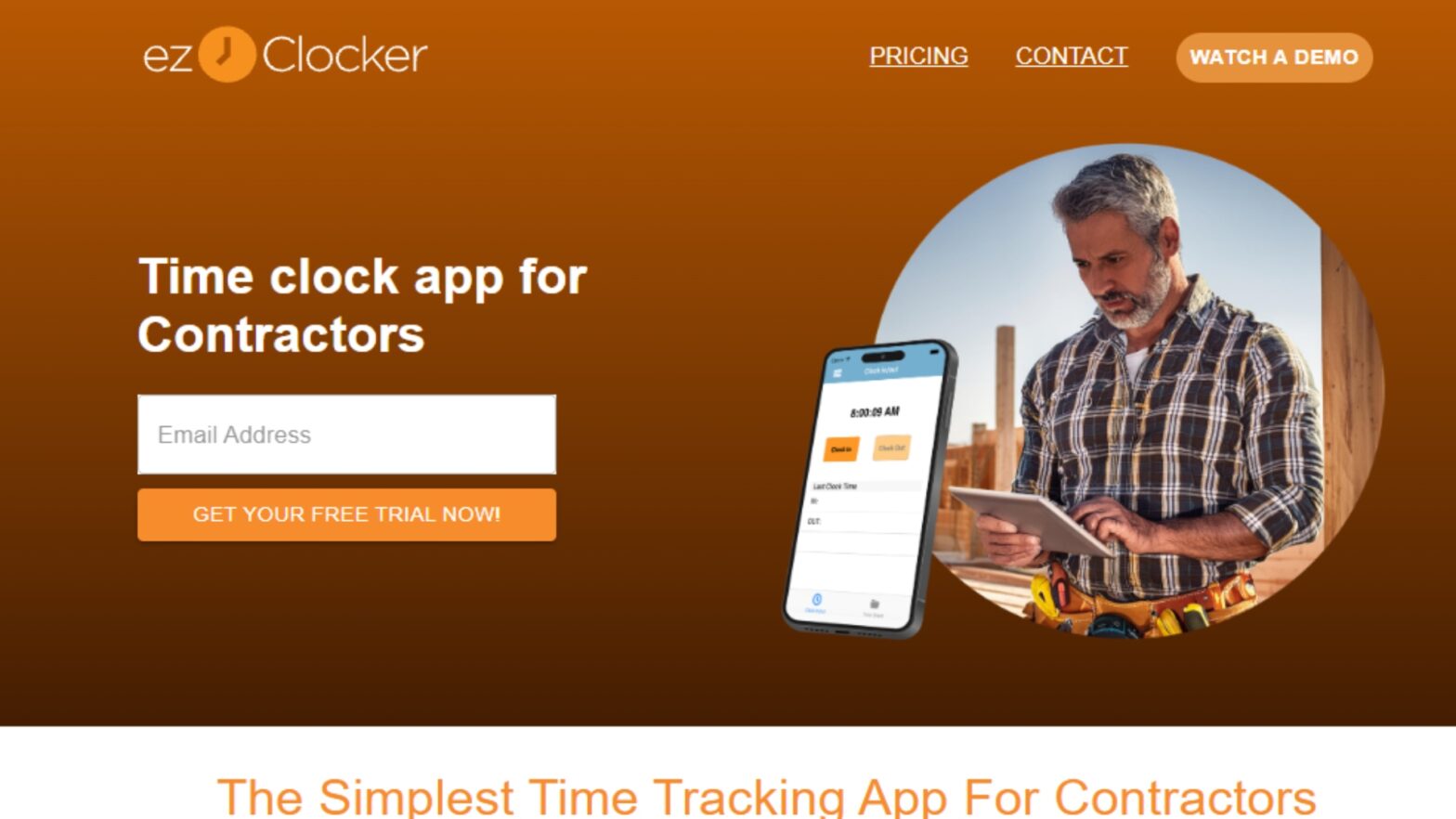
ezClocker is built around a one-tap clock-in that works on Apple and Android devices. Basic costs USD 15 a month for up to 15 employees, and Standard costs USD 30 for up to 30 and adds job assignments.
Why it’s good for contractors: Crews see shifts with location details and instructions in the app, and a tablet kiosk in Team Mode lets workers clock in with a 4-digit PIN. GPS location is saved at each clock-in and clock-out.
What to consider: Tracking hours by job requires Standard rather than Basic. A 30-day free trial lets you test it with your crew first.
2. busybusy
Best for: Equipment-heavy crews that want a free plan with no user cap.
busybusy offers a free-forever plan with unlimited users. It includes GPS time tracking, job costing and equipment tracking.
Why it’s good for contractors: Crews can track machines alongside labor hours at no cost, and the bill stays at zero as the crew grows.
What to consider: Scheduling and GPS breadcrumbing sit on the paid Pro plan. Check the per-user Pro price and the admin license fee before you upgrade.
3. Clockify
Best for: Two- or three-person teams testing digital time capture.
Clockify’s free plan covers up to 5 users with unlimited time tracking and unlimited projects. Basic costs USD 4.99 per seat monthly, or USD 3.99 with annual billing.
Why it’s good for contractors: The free plan costs nothing to try, and Basic adds a kiosk plus CSV and Excel report exports.
What to consider: Free plan exports are PDF only, which payroll providers can’t import directly. Scheduling and GPS tracking sit on the higher Pro plan.
4. Connecteam
Best for: Teams of 10 or fewer that want time tracking, scheduling and chat in one app.
Connecteam’s Small Business Plan is free for up to 10 users. Its Operations Basic plan costs USD 35 a month, or USD 29 a month with yearly billing, for the first 30 users.
Why it’s good for contractors: The free plan includes the time clock, job scheduling, forms and team chat with no subscription.
What to consider: The 10-user limit counts archived users as well as active ones. On paid plans, communications and HR tools are sold as separate hubs.
5. QuickBooks Time
Best for: Contractors who already run their books in QuickBooks Online.
QuickBooks Time Premium costs USD 20 a month plus USD 10 per user. It requires a QuickBooks Online subscription, which is billed separately.
Why it’s good for contractors: Premium includes GPS while clocked in, scheduling, a time kiosk and payroll and invoicing sync.
What to consider: Intuit raised the per-user fee by USD 2 on July 1, 2026. A 10-person crew now pays USD 120 a month before the QuickBooks Online fee.
6. ClockShark
Best for: Growing crews that can commit to a longer contract.
ClockShark combines GPS time tracking, job and task tracking and scheduling in one app. It offers a 14-day free trial with Pro features.
Why it’s good for contractors: Field crews get time capture and scheduling in a tool built for construction and field service work.
What to consider: A three-year contract term applies to all plans, and the pricing page doesn’t list prices. Get a written quote and confirm the term before you commit.
How to roll out a time tracking app in six steps
Step 1: Start with one crew
Pick one crew and a handful of active jobs. Two pay periods give you two full cycles of recording, review and payroll handoff.
Step 2: Set up jobs before anyone clocks in
Enter active jobs before the first shift. Skip the catch-all “miscellaneous” code, which leaves the office sorting hours after the fact.
Step 3: Run a short demo
Show the crew how to clock in, pick a job, switch jobs and clock out. Include where to find tomorrow’s schedule.
Step 4: Agree on a backup process
Decide what happens when someone forgets a punch or a site has no signal. A message to the supervisor followed by a corrected entry with a note keeps the record complete.
Step 5: Explain what the app collects
Tell workers exactly when location is recorded, based on the settings you’ve chosen. Clear answers up front prevent pushback later.
Step 6: Reconcile with payroll
At the end of each pay period, compare exported hours with payroll inputs. Track how many entries needed correcting and whether the file imported without manual edits.
If missed punches stay frequent after the second pay period, ask the crew where the process breaks down. Fix that before adding more crews.
Conclusion
The right time tracking app is the one your crew uses every day at a price that still works as you hire. Start with the monthly total for your actual headcount, then confirm that job tracking and payroll exports come with the plan you’d buy.
Free plans are a sensible starting point for very small teams. Flat-rate plans stay predictable as crews grow, while per-seat pricing suits teams that stay small.
Whichever app you choose, test it with one crew first. Two clean pay periods will tell you more than any feature list.
Frequently Asked Questions
What is the cheapest time tracking app for contractors?
Several apps have free plans. busybusy is free for unlimited users, Connecteam is free for up to 10 users and Clockify is free for up to 5, though each limits features compared with its paid tiers.
Do contractors need GPS tracking?
It depends on how spread out your crews are. Location stamps at clock-in and clock-out confirm where a shift started and ended, while continuous tracking during the shift usually costs more.
Can a whole crew share one tablet?
Yes. Many apps include a kiosk mode where workers clock in on a shared tablet with a personal PIN.
Is travel between job sites paid time?
Under U.S. federal rules, travel from one job site to another during the workday generally counts as hours worked. Check any state rules that apply to your crew as well.
How long should a trial last?
Run at least one full pay period, and two if you can. That lets you test clock-ins, corrections and the payroll export with real data.